User guide

How to use
your porteJoie.

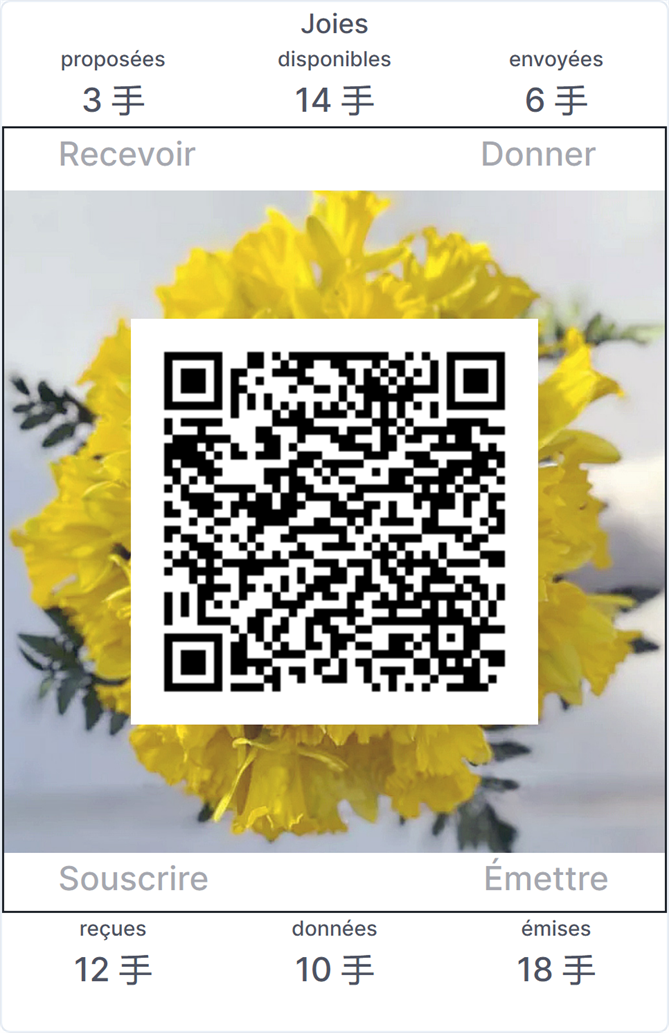
Six archives, six counters, four commands. Hover any zone of the panel below for its name, click to read what it does.

Screenshot of the porteJoie panel — six counters around four commands and the central QR code.
Each counter position has two zones: the label on top opens an archive, the number below shows what the counter measures. The four commands act on your porteJoie.
Six archives

Click a label to open its archive.

The text labels on the porteJoie panel are clickable. Each one opens a different archive — pieces of history kept on your behalf.

Archive

Pending

When you click the word "pending", you open the archive of all the Joies you have ever been offered.

You see the list of every Joie proposal you have received — those still awaiting your review (in red) and those already accepted (in black) — with for each:

— the number of Joies offered,
— the date of the proposal,
— the email address of the sender.

An asterisk marks a first recipient for whom a Joie with a private effigy was issued — that is, a medal if the circulation of the effigy was limited.

↑ back to the panel

Archive

Available

Click "Joies" or "available" to return to the main panel.

The main panel shows the five archive traces, the six counters, the four commands, and the central workspace — which by default displays your porteJoie QR code on a bouquet of daffodils.

↑ back to the panel

Archive

Sent

When you click the word "sent", you open the archive of all the Joies you have ever sent.

You see the list of every Joie you have given — those still awaiting review by their recipient (in red) and those already accepted (in black) — with for each:

— the number of Joies sent,
— the date of the sending,
— the email address of the recipient.

An asterisk marks a first recipient for whom a Joie with a private effigy was issued — that is, a medal if the circulation of the effigy was limited.

↑ back to the panel

Archive

Received

When you click the word "received", you open the archive of the effigies of every Joie you have accepted — whether you have since passed them along or not.

For each effigy you see:

— the number of Joies bearing this effigy,
— the image of the effigy,
— the name of the effigy.

An asterisk marks the reception of a private effigy — a medal if the circulation of the effigy was limited, or belonging to the group united by an unlimited private effigy.

↑ back to the panel

Archive

Given

When you click the word "given", you open the archive of the effigies of every Joie you have given and that has been accepted.

For each effigy you see:

— the number of Joies bearing this effigy,
— the image of the effigy,
— the name of the effigy.

↑ back to the panel

Archive

Issued

When you click the word "issued", you open the archive of the effigies of every Joie you have ever issued.

For each effigy you see:

— the number of Joies bearing this effigy,
— the image of the effigy,
— the name of the effigy.

An asterisk marks the issuance of a private effigy — a medal if the circulation of the effigy was limited, or attachment to the group united by an unlimited private effigy.

↑ back to the panel

Six counters

What each number tells you.

The numbers under each label tell you a quantity in real time. Hover them on the panel above to jump to the matching description.

Counter

Pending — counter

Gives the number of Joies offered to you by senders, but whose proposal you have not yet examined.

To process these pending proposals, click on "pending". They appear in red on the list.

↑ back to the panel

Counter

Available — counter

Gives the number of Joies that can be mobilised to thank someone whose service you wish to recognise.

This counter equals the sum of received and issued Joies, minus the sum of given and sent Joies.

↑ back to the panel

Counter

Sent — counter

Gives the number of Joies you have sent to recipients, but whose proposal has not yet been examined by them.

After examination by their recipient, the corresponding Joies are deducted from this count. Refused Joies become available again.

↑ back to the panel

Counter

Received — counter

Gives the number of Joies that have been offered by grateful senders and accepted by you.

View their personal messages by clicking on "pending". Contemplate their effigies by clicking on "received".

↑ back to the panel

Counter

Given — counter

Gives the number of Joies you have sent as a sign of gratitude and that have been accepted by their recipient.

View your personal messages by clicking on "sent". Contemplate their effigies by clicking on "given".

↑ back to the panel

Counter

Issued — counter

Gives the number of Joies you have issued after online subscription and sent as a sign of gratitude.

View your personal messages by clicking on "sent". Contemplate their effigies by clicking on "issued".

↑ back to the panel

Four commands

What you can do.

The four buttons around the central workspace let you act. The description below each one is exactly what happens when you click the button inside your porteJoie.

Command

Receive

Click RECEIVE to examine the latest proposal from a grateful sender.

It uses the central workspace to display:

— the email address of the sender,
— the number of Joies offered,
— the personal message,
— the accept / decline icons.

↑ back to the panel

Command

Give

Click GIVE to offer available Joies to a recipient who deserves your recognition.

It uses the central workspace to display:

— the email address of the recipient,
— the number of Joies to offer,
— the personal message,
— the confirm / cancel icons.

If the recipient does not yet have a porteJoie, the system creates a placeholder for them and sends an invitation by email.

↑ back to the panel

Command

Subscribe

Click SUBSCRIBE to obtain the right to issue Joies. Each Joie requires one euro to be set aside in the reserve fund.

Your payment is processed through the association HelloAsso.

You may also transfer subscription rights to another user already registered on pourlajoie.org — simply enter their identifier (email address).

To account for rights already allocated to private effigies, these rights are deducted from your "free balance" (shown on the ISSUE command page).

↑ back to the panel

Command

Issue

Click ISSUE to create new Joies from rights you have already subscribed.

Indicate the effigy the Joies will carry — private effigies appear at the top of your catalogue — then the identifier (email address) of the first recipient(s) (copy-paste a list if needed), the number of Joies to send to each, and the message addressed to them.

For a private effigy, rights are first deducted from the balance allocated to that effigy when it was declared (minimum of 100). Every effigy can also be issued from your free balance, available once private-effigy allocations have been subtracted from the total.

↑ back to the panel

Effigies

Public, private, permanent.

An effigy is the image and name a Joie carries — the person, place or value being honoured. Three kinds exist:

Public effigies
Available to anyone in the catalogue. Any porteJoie holder can issue Joies bearing them.
Private permanent effigies
Reserved for the issuer's use. A Joie issued with one keeps that effigy as long as it circulates.
Private limited effigies
Reserved for the first recipients only. Once those recipients pass the Joie along, the effigy reverts to a default (Jean-Pierre Joussemet, in whose memory the project was created).
Open your porteJoie

Ready to use it?

If you have already created your porteJoie, open it directly in a separate window. Otherwise, the registration form is on the Register page.